
Direct answer
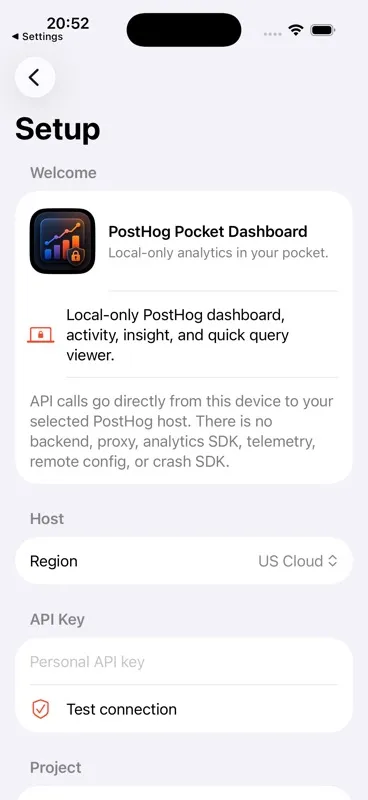
Choose Custom during setup, enter the HTTPS base URL that serves your PostHog instance, save a personal API key in Keychain, and test authenticated access before selecting the project. The app calls that host directly; it does not proxy self-hosted traffic.
Self-hosted PostHog changes the connection details, not the mobile workflow. The critical requirement is a stable HTTPS base URL that exposes the private API endpoints your key is allowed to read.
PostHog notes that self-hosters manage their own infrastructure, URLs, upgrades, and scaling risk. The mobile companion cannot diagnose the whole deployment, but a deliberate connection test can separate DNS, TLS, reverse-proxy, authentication, and project-scope problems.
Before you start
- A running self-hosted PostHog deployment reachable from the iPhone.
- A valid HTTPS hostname with a trusted certificate.
- A personal API key created in that PostHog instance with narrow read scopes.
- A project ID in the same instance, or permission for the key to list projects.
Step-by-step instructions
Verify the host in Safari first
Open the base hostname on the iPhone and confirm DNS, TLS, and any VPN path work. If Safari cannot reach the host, the app cannot fix the network route.
Choose Custom in setup
Enter the origin that serves PostHog, including https:// and any required port. Use the base origin, not a dashboard URL with /project/... appended.
Save a dedicated personal API key
Create the key inside the self-hosted instance, paste it into the secure field, and keep its scopes limited to the views you need. The app stores it in iOS Keychain.
Test authenticated access
Run Test connection before choosing a project. This catches invalid keys, TLS failures, and host-level API problems without mixing them with a project ID typo.
Discover or enter the project
Use Find projects when the key can list them. Otherwise enter the numeric project ID manually, open the dashboard, and test the exact feature you need.
A clean diagnostic sequence
Network layer
Confirm the phone can resolve the host, complete TLS, and reach it through any required VPN or private network.
Authentication layer
Use Test connection to verify the bearer token against the selected host.
Authorization and data layer
Select the project, open Dashboard or Quick Query, and address a feature-specific forbidden response by reviewing only that read scope.
Options and limitations
- The app does not configure, upgrade, or secure a self-hosted PostHog deployment.
- Private CA certificates or TLS interception may not be trusted by iOS without device-level certificate configuration.
- A reverse proxy must forward the PostHog API paths and authorization headers used by the app.
- PostHog self-hosted feature/API behavior can differ as deployments move between commits or configurations.
Common mistakes
Entering a project page URL
Use the base origin, such as https://posthog.example.com, rather than a URL containing /project/123/dashboard.
Testing only on the server LAN
Verify the same iPhone network path you will use in practice, including VPN, split DNS, firewall, and certificate trust.
Blaming the key for a TLS error
Authentication starts after the secure connection succeeds. Fix DNS and certificate failures before changing scopes.
Troubleshooting
The host cannot be reached
Check Safari, DNS, VPN, firewall rules, port, and whether the reverse proxy listens on the public hostname.
The key is unauthorized
Create or rotate the key in the same self-hosted instance and confirm the app is not still pointed at US or EU Cloud.
Projects cannot be listed
The key may authenticate without project-list access. Enter the project ID manually or add the smallest project read scope needed for discovery.
Related questions
Does self-hosted PostHog data pass through the app developer's server?
No app-owned backend or proxy is implemented. Requests go from the device to the custom host you configure.
Can I use an HTTP-only local hostname?
The intended setup is HTTPS with a certificate trusted by iOS. An insecure or privately trusted host may be blocked or require device-level network and certificate configuration outside the app.
Primary references
Product behavior above is based on the app source. These official PostHog references cover the underlying PostHog capability: