
Direct answer
Configure the PostHog Activity Count widget in the app, then add it from the iOS Home Screen widget gallery. The widget shows one selected activity count for one project and time range; iOS controls the actual refresh schedule.
A widget is useful when one number deserves a glance without opening the app: new accounts today, purchases this week, or an application-open event during a launch. It is less useful as a tiny dashboard, so PostHog Pocket Dashboard deliberately gives the widget a narrow job.
The saved widget configuration contains the event name, time range, requested refresh interval, host, and project ID. The API key remains in the shared iOS Keychain access group and is not copied into widget preferences.
Before you start
- PostHog Pocket Dashboard configured with a working host, project, and personal API key.
- An event that has recently appeared in the selected project.
- An iPhone or iPad running iOS 17 or later.
- The device has been unlocked at least once after a restart so the chosen Keychain accessibility can support background widget refresh.
Step-by-step instructions
Open Settings in the app
Confirm the current host and project before configuring the widget. Widget choices are scoped to that combination, which prevents a project switch from silently showing a different product's count.
Refresh the activity list
In Activity Widget settings, refresh activities to load recent event names from the current PostHog project. If none are returned, the app retains common defaults and the currently saved event name.
Choose one activity and time range
Pick the event whose count is meaningful on its own, then choose the supported time window. Use a label that you can recognize at a glance; the widget displays the activity name and current count.
Choose a refresh request
Select the interval you want the widget to request. Treat it as a preference, not a guarantee: WidgetKit schedules background work according to system conditions and may delay it.
Save, then add the widget in iOS
Tap Save widget. On the Home Screen, enter edit mode, choose Add Widget, find PostHog Activity Count, select a supported small or medium size, and place it.
What the widget does during refresh
Loads the saved scope
The extension reads the selected host, project, event, time range, and refresh request from the shared app-group configuration.
Reads the API key from Keychain
The extension accesses the same device-only Keychain item after the device has been unlocked once following restart.
Queries PostHog directly
The widget asks the selected PostHog host for the count, displays the result, and shows the time the timeline entry was updated.
Options and limitations
- WidgetKit refresh timing is best-effort and may not match the requested interval.
- The current widget supports small and medium Home Screen families.
- Each widget instance is intended to show a single selected activity count, not an entire dashboard.
- A network, authentication, or scope failure can leave the last timeline entry visible as stale data.
Common mistakes
Expecting real-time refresh
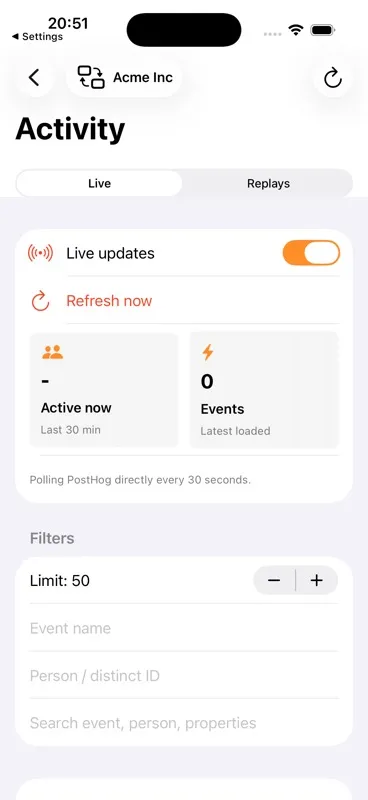
Use the app's Activity screen when you need an active 30-second polling loop. A Home Screen widget is a glanceable, system-scheduled surface.
Saving before the project
Save the host and project first. The widget cannot build a valid query without a project ID.
Picking an ambiguous event
Choose an event whose raw count is useful without breakdowns. Complex funnels and segmented metrics belong in a dashboard or query.
Troubleshooting
The widget says no data
Open the app, confirm the key and project, run Test API key and host, then save the widget again.
The count is old
Open the app after restart and unlock the device. Remember that iOS may postpone widget refresh even when configuration is correct.
The event is not in the picker
Refresh activities in Settings. Verify that the event exists in the last seven days for the selected project.
Related questions
Can I force the widget to update every 15 minutes?
No. The app can request a refresh cadence, but iOS makes the scheduling decision and may delay background updates.
Is the API key stored in the widget configuration?
No. The widget configuration stores scope information; the key remains in iOS Keychain.