
Direct answer
Use PostHog Pocket Dashboard to connect an iPhone directly to your existing PostHog host, choose a project, and check the mobile views that answer quick operational questions. It is designed for reading and small, scoped queries—not for replacing the full PostHog web workspace.
The useful mobile question is rarely “Can I fit every PostHog control onto a small screen?” It is usually “Did sign-ups move, are events arriving, and can I inspect the session that looks wrong?” A good iPhone workflow should make those checks quick while leaving complex dashboard editing and administration on the web.
PostHog Pocket Dashboard is a native iOS companion. API requests go from the device to the PostHog host you select. The app does not introduce its own analytics backend or proxy, and it keeps the personal API key in iOS Keychain rather than the local SQLite cache.
Before you start
- An iPhone or iPad running iOS 17 or later.
- Access to a PostHog US Cloud, EU Cloud, or self-hosted project.
- A PostHog personal API key with only the read scopes needed for the views you plan to use.
- Your project ID, unless the key can list projects and the app discovers it automatically.
Step-by-step instructions
Decide what needs a mobile check
Choose one or two decisions you need to make away from your desk: confirm events after a release, scan a dashboard, check an activity count, or inspect a replay. This prevents a phone dashboard from becoming an unreadable copy of the desktop workspace.
Create a narrowly scoped personal API key
In PostHog, create a separate key for the mobile companion and grant only the read scopes required by the endpoints you will use. A dedicated key is easier to audit or revoke than reusing a broad automation key.
Choose the correct PostHog host
Select US Cloud or EU Cloud when that is where your account lives. For self-hosted PostHog, enter the HTTPS base URL that already serves your instance. Host and project must match; an EU project will not load from the US host.
Test the connection and select a project
Paste the key into the secure setup field, run Test connection, then use project discovery or enter the project ID. A successful host-level test does not prove every feature scope is present, so open the view you actually need as a final check.
Start with Overview, Dashboard, or Activity
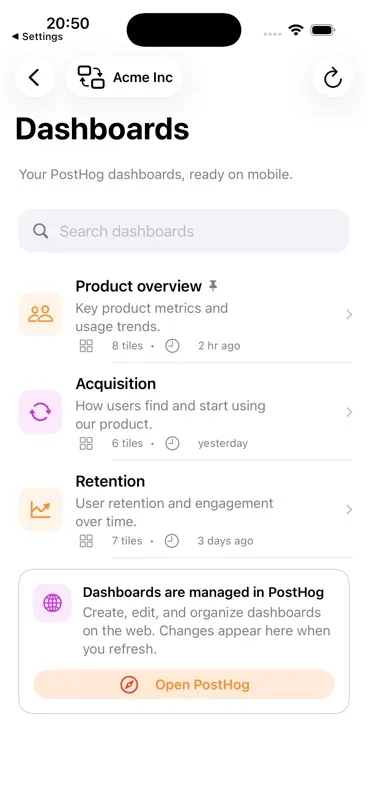
Use Overview for a few saved event metrics, Dashboard to browse dashboards already managed in PostHog, and Activity for recent events or session replays. Use Quick Query only when a predefined view cannot answer the question.
The PostHog Pocket Dashboard workflow
Overview for a few signals
Add the activities that matter to the current project, choose a time range, and refresh. Metrics are project-scoped so switching projects does not mix definitions or results.
Dashboard for existing analysis
Browse PostHog dashboards and open their tiles on mobile. Dashboard creation and editing stay in PostHog on the web; refresh the app after making changes there.
Activity for verification
Turn on live updates for a 30-second polling loop while the app is active, filter recent events, or switch to Replays to search by person, URL, or recording ID.
Options and limitations
- The app is an independent companion and is not an official PostHog client.
- It intentionally disables PostHog write operations; edit dashboards, experiments, and project configuration in PostHog on the web.
- Cached results can help with continuity, but live answers still require network access to your PostHog host.
- Feature availability depends on the scopes and data available to the selected project.
Common mistakes
Using the wrong cloud region
If a known project is missing, confirm whether it belongs to us.posthog.com or eu.posthog.com before changing the API key.
Treating cached data as current
Look for the refresh state and last-updated context before acting on a number, especially after the phone has been offline.
Using an all-powerful key
A mobile read workflow should not rely on a key with unrelated write access. Start narrow and add a read scope only when a specific view proves it is required.
Troubleshooting
The connection succeeds but a page is forbidden
The key can authenticate but lacks a scope used by that page. Review the key in PostHog and add the smallest relevant read scope.
No dashboards appear
Confirm the project, then create or edit dashboards in PostHog on the web and pull to refresh in the app.
Numbers differ from a web insight
Match the event, aggregation, project, and time range first. A saved mobile metric and a dashboard tile may be asking different questions.
Related questions
Can the app replace PostHog on desktop?
No. It is optimized for monitoring, inspection, replays, and small queries. Complex analysis and administration remain better suited to PostHog on the web.
Does the app require a separate account?
No separate app account is implemented. You connect to an existing PostHog host using a personal API key and project.
Primary references
Product behavior above is based on the app source. These official PostHog references cover the underlying PostHog capability: